
How to Organize Photos for a Photo Book
If you've ever opened your camera roll to make a photo book and instantly felt overwhelmed alone. Most parents have thousands of photos on their phones, and that's why a phone-first approach can be a game-changer: when your workflow lives where your photos already are (your phone), organizing becomes lighter—and you're far more likely to finish.
Here's the good news: learning how to organize photos for a photo book doesn't require a weekend, a laptop, or a perfectly curated life. With the right system, you can sort your photos fast, tell a story, and actually finish.
Quick answer: The best way to organize photos for a photo book is to pick one clear theme, choose a quick clean-up (duplicates + blurry shots), group photos into simple "chapters," then select your best photos and arrange them in a straightforward story order.
Why Organizing Photos Before Designing a Photo Book Matters
Photo book organization is like laying out ingredients before cooking. It doesn't just save time; it makes the whole process feel lighter.
When you organize first, you get:
- Less decision fatigue. You're not choosing layouts and photos at the same time.
- A stronger story. Your book feels intentional, not like a random camera roll dump.
- Better print results. You're more likely to catch low-quality images before you pay to print them.
- More momentum. When you can organize and build in the same place (instead of bouncing between devices, folders, and uploads), it's easier to keep moving.
If your goal is meaningful, personalized photo books that don't take over your life, organizing is the shortcut.

Step-by-Step: How to Organize Photos for a Photo Book
This step-by-step approach is designed for busy parents. It's simple, repeatable, and works whether making one book or building a yearly habit.
1) Choose a theme or purpose first
Before you touch your photos, decide what this book is about. A theme keeps you from trying to include everything.
Examples of easy themes:
- "Summer 2025"
- "Baby's First Year"
- "Back-to-School"
- "Weekend Adventures"
- "Grandparents' Highlights"
If you're stuck, choose the theme that makes you smile right now. Motivation matters.
2) Select a clear date range
A date range creates natural boundaries. It also makes it much easier to find photos quickly.
Try one of these:
- A single event: one weekend trip, one holiday, one birthday
- One season: spring, summer, fall, winter
- A milestone window: "first 3 months," "first year," "the school year"
3) Do a fast clean-up (duplicates, blurry, low-quality)
This is where you get your time back.
Photo Book Organization Tips
Start by removing:
- Duplicates (including near-duplicates from bursts)
- Blurry shots
- Accidental screenshots (unless they're meaningful)
- Photos that are too dark or too far away to print well
Quick rule: If you wouldn't want it printed on your wall, it probably doesn't need to be in your book.
FlipShotz tip: A smaller, cleaner photo set makes everything easier—selection, layout, and review. Flip is built for this "curate first, design second" flow so you're not dragging filler photos into your pages.
4) Group photos into simple "chapters"
Now you're ready for real photo book organization.
Pick one grouping style:
- By event: "Day 1 / Day 2 / Day 3"
- By milestone: "first day," "first win," "first day of school"
- By person: "Kid 1," "Kid 2," "Family," "Friends"
- By story: "Before / During / After"
FlipShotz tip: Think of each chapter as a mini-story you can build in minutes. A phone-first FlipShotz helps you turn chapters into pages without needing to over-design—one moment per spread is often all you need.
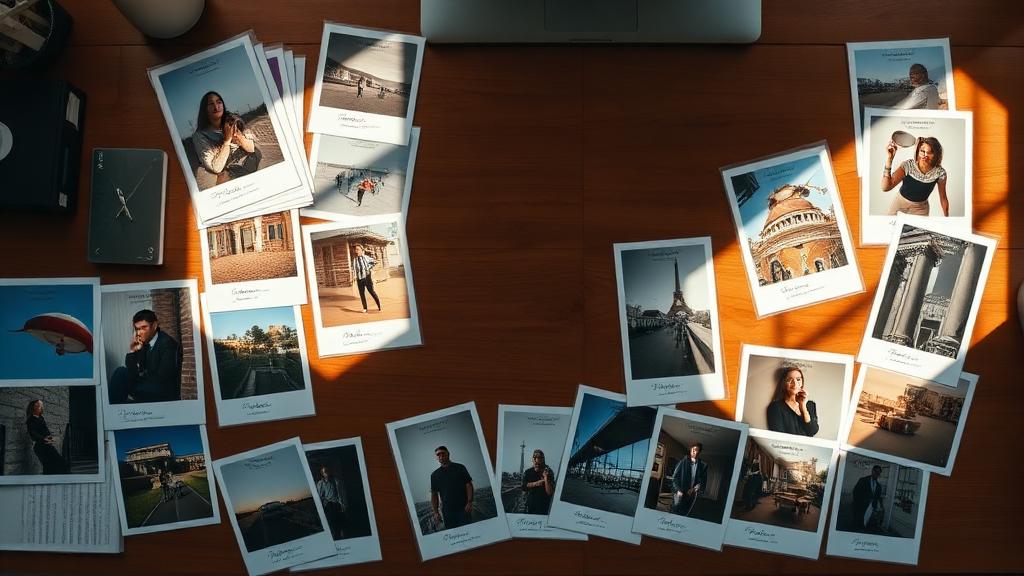
5) Choose the best images (not the most images)
This is the step most people fear, but it's also where your book becomes beautiful.
Here's a practical way to choose photos for a photo book:
- Start with your "must-haves." The moments you'd be sad to lose.
- Add variety. Mix close-ups, wide shots, and in-between moments.
- Keep the duplicates out. Choose the best smile, the clearest action shot, the most "real" moment.
Simple target:
- For a small book: ~40–80 photos
- For a larger book: ~80–140 photos
If you're wondering how to sort pictures for a photo book, remember this: a great book is one where many photos makes the story harder to follow.
6) Arrange photos in a clear storytelling order
Even a simple timeline feels meaningful when it follows a story.
Try this easy structure:
- Start: a scene-setter (where are we? what's happening?)
- Middle: the best moments + details
- End: a wrap-up (a final smile, a quiet moment, a goodbye)
Add "bridge" photos between big moments (walking to the car, the messy table, the sleepy kid) often the photos you'll love most later.
A Simple Photo-Sorting System That Works in 15 Minutes
If you're short on time, use this quick method:
- Create three folders/albums: Maybe, Yes, Must Print
- Do one fast pass through your date range:
- Put anything "good" into Yes
- Put anything "great" into Must Print
- Put anything you're unsure about into Maybe
- Build your book from Must Print first, then fill gaps from Yes
This is one of the best ways to organize photos for printing without getting stuck.
How to Organize Photos for a Photo Book Directly from Your Phone
You don't need to export files or sit at a computer. You can organize photos for a photo book directly from your phone—especially if you follow a clear workflow.

Use your phone's built-in tools (fast and free)
Most photo apps let you search and filter in surprisingly powerful ways.
Try these features:
- Search by date: jump to a month, year, or specific day
- Search by location: "beach," "Disney," "Grandma's house" (or your saved location names)
- Search by person: face recognition can quickly gather photos of a child or family member
- Favorites (⭐): use this as a quick "Yes" pile
- Albums: create one album per book (or per chapter)
A phone-first workflow you can do in small bursts
Here's a realistic workflow for busy parents:
- Start an album for your book (example: "Fall 2025 Book").
- Do a 5-minute sweep through the date range and add obvious keepers.
- Do a clean-up pass (remove blurry/duplicates from the album).
- Sort within the album by adding notes or moving photos into mini-albums (chapters).
- Build the book in short sessions—10 minutes here, 10 minutes there.
This is also where using a truly phone-first photo book tool matters. FlipShotz is mobile-only; you can pull photos straight from your camera roll, keep your selection personalized, organized, and build photo books in the same short pockets of time you already have—no laptop required and no "when I'm at my computer" barrier.
Make Your Story Easier with Captions (Even Short Ones)
Captions turn a "photo album" into a memory book.
Keep it simple:
- "First day of school"
- "She wouldn't stop laughing"
- "We were so tired—and so happy"
If typing feels like too much, use your phone's voice-to-text to dictate quick captions. FlipShotz captions are simple to add right where you're already building the book—so the story doesn't get lost in a separate notes app.
How to Sort Pictures for a Photo Book When You Have Thousands
When you're staring at years of photos, the trick is to shrink the problem.
Start with one "container" question
Choose one:
- "What do I want to remember about this season?"
- "What would I show my kids when they're older?"
- "If I could only print 20 photos, which ones?"
That question becomes your filter.
Use a 3-pass approach (it's faster than it sounds)
This is the easiest way to sort pictures for a photo book without overthinking:
- Pass 1: Keepers only (fast). Don't stop to decide between similar photos.
- Pass 2: Reduce duplicates. Pick the best from each burst or repeated scene.
- Pass 3: Balance the story. Add a few detail shots and "in-between" moments.
This keeps the process practical and prevents the perfection trap.
Common Mistakes to Avoid
Avoiding a few common missteps will save you hours.
- Trying to include everything. A photo book isn't a backup drive.
- Mixing too many events. One book = one clear story.
- Skipping the clean-up step. Blurry photos are distracting in print.
- Using only posed photos. Candid moments make the book feel real.
- Leaving captions until the end. Add quick notes as you go.
- Waiting for "free time." Busy parents don't get a spare weekend—finish in small sessions.
Final Practical Tips to Actually Finish Your Photo Book
You don't need more motivation. You need a plan that fits real life.
1) Set a finish line
- "I'm making a 30-page book."
- "I'm using 80 photos max."
- "I'll work on this for 15 minutes, three times this week."
2) Choose a "good enough" standard
Your kids won't care if the spacing is perfect. They'll care that the story exists.
3) Work in tiny sprints
Try this sprint structure: Sprint 1—pick your theme + date range. Sprint 2—clean up and select favorites. Sprint 3—group into chapters. Sprint 4—put photos in order + add short captions. Sprint 5—final review and order.
4) Make it a habit, not a project
If photo books only happen once a year, they'll always feel heavy. But if you build in a little go, they become manageable.
FlipShotz was built for this "little by little" approach. It's mobile-only and designed around quick steps—so you can keep your memories moving forward in short sessions, instead of letting them pile up in your camera roll.
5) Save time with a repeatable template
Once you find a structure you like (season book, trip book, school-year book), reuse it. Repeatable templates beat creative reinvention every time.

Conclusion: How to Organize Photos for a Photo Book (Without the Overwhelm)
If you've been avoiding photo books because your camera roll feels impossible, you're not alone. The simplest way to handle organizing photos for a photo book is to narrow your theme, pick a clear date range, remove the noise (duplicates + blurry shots), group the story into easy chunks, and select your best images.
If you want the most manageable path, pair this organizing system with a phone-first creator—so your organized album can turn into a finished book in just a few short sessions.
FAQs: Organizing Photos for a Photo Book
What's the best way to organize photos for printing?
Start with a theme and date range, then remove duplicates and blurry photos. Group your photos into simple chapters (by event or milestone) so the book tells a clear story.
How many photos should I use in a photo book?
A practical range is 40–80 photos for a smaller book and 80–140 for a larger book. Fewer photos often look better and feel easier to read.
How do I choose photos for a photo book without overthinking?
Use a 3-pass method: first pick obvious keepers, then reduce duplicates, then balance the story with a mix of people shots, wide scenes, and small detail moments.
How do I organize photos for a photo album on my phone?
Create an album for your book, favorite quick keepers, and use search (date, location, people) to find photos fast. Do short sorting sessions instead of trying to finish in one sitting.
Can I organize photos and make a photo book without a computer?
Yes. You can do everything from your phone: choose a date range, curate your best photos into chapters, and build the book. A mobile-only app like FlipShotz helps you keep the whole process simple and manageable.